
8 Best Free Online Text Tools for Writing and Editing
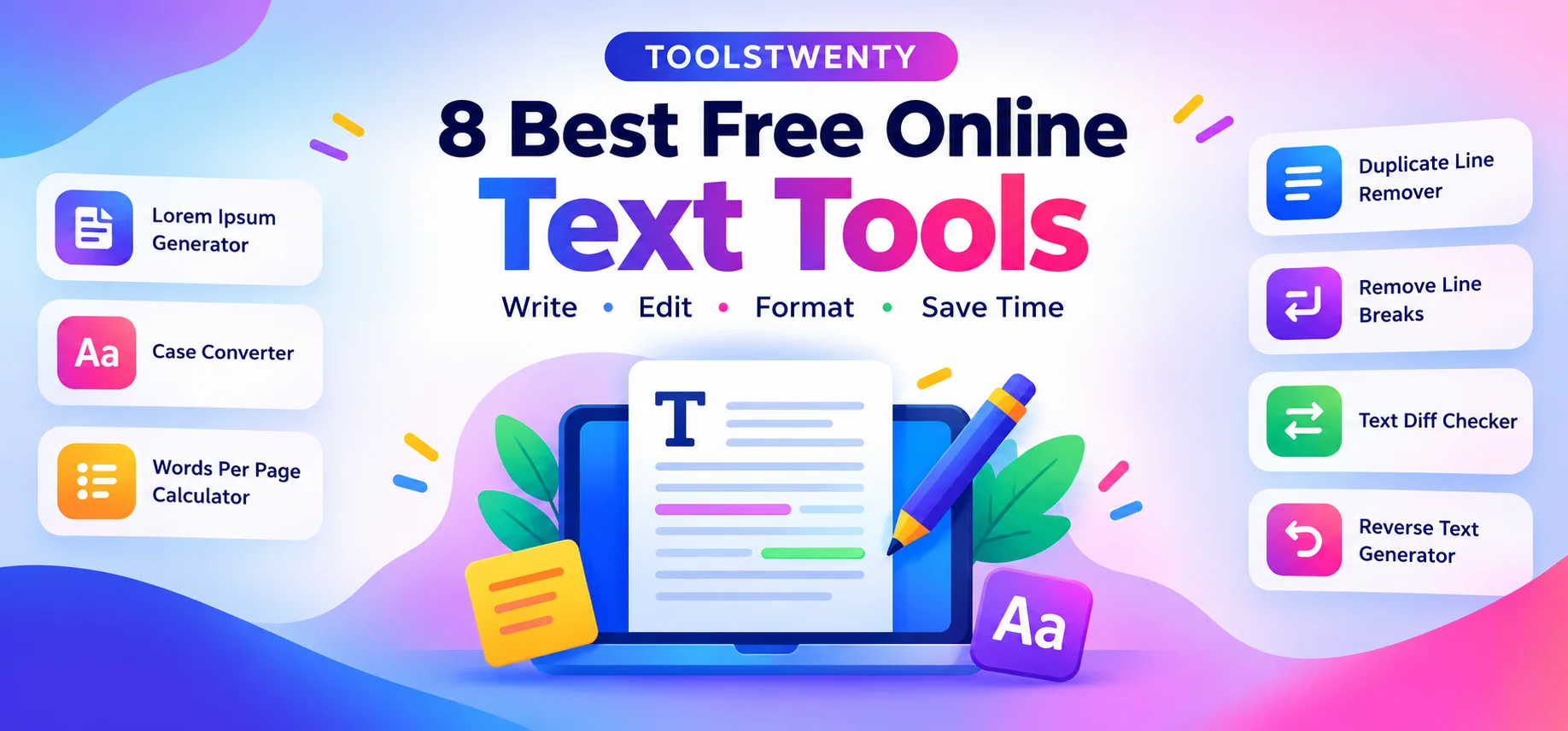
TOOLSTWENTY • FREE ONLINE UTILITIES
8 Best Free Online Text Tools for Writing and Editing
Make everyday writing tasks easier with free online text tools. Count words, format text, remove duplicate lines, compare drafts and clean up text in just a few clicks.
Make Text Editing Easier with Free Online Tools
Writing and editing often involve small tasks that take up valuable time. You might need to check the length of an article, change capitalization, clean a copied passage, remove repeated entries or compare two versions of a document. Doing these jobs manually can become frustrating, especially when you are working with long text.
Toolstwenty brings together eight useful text tools to help with common writing, formatting and text-cleanup tasks. Whether you are a student preparing an assignment, a blogger editing an article, a content creator organizing notes or a professional reviewing documents, you can choose the tool that fits your task.
Explore the tools below, read what each one can help you do, and open its dedicated page when you are ready to try it. Always review the processed text before publishing or submitting important work.
1. Lorem Ipsum Generator
When designing a website, preparing a page layout or creating a prototype, you may need sample text before the final content is ready. A Lorem Ipsum Generator helps fill empty text areas with placeholder copy, making it easier to preview how paragraphs and text blocks will look in a design.
Placeholder text is especially useful for web designers, developers, students and content teams. It lets you test typography, paragraph spacing, line length and the overall balance of a page without waiting for finished copy. You can use sample text in a website mockup, landing page concept, application interface, presentation or document template.
For example, if you are building a blog layout, placeholder paragraphs can help you understand how much space the article content will occupy. You can adjust headings, margins and other visual elements before inserting the real writing. This makes the design process easier to review and refine.
Use the Lorem Ipsum Generator when you need sample copy for a layout or demonstration. Once the design is ready, replace the placeholder text with original, accurate content that serves your audience. Lorem Ipsum is intended for design and testing purposes rather than as a replacement for meaningful published information.
- Prepare sample text for website and app mockups.
- Preview paragraphs and content spacing.
- Test layouts before final copy is available.
2. Word Counter Online Tool
Knowing how long your writing is can help you meet assignment requirements, follow a content brief or keep a paragraph concise. A Word Counter Online Tool helps you check the length of text without counting every word manually. It is useful for students, bloggers, writers, editors and anyone who regularly works with written content.
Word counts can be important when preparing essays, blog posts, reports, product descriptions, social media captions and other types of writing. Character counts are also useful when a form, title field or publishing platform limits the number of characters you can enter. Checking length during editing can help you identify sections that need more explanation or can be made more concise.
To get started, open the tool and enter or paste the text you want to measure. Review the available counts, then edit your writing according to the requirements of your project. If an article is too long, remove repetition and unnecessary wording while preserving useful details. If it is too short, consider adding relevant examples or explaining important points more clearly.
Remember that different platforms may count certain symbols, hyphenated words or whitespace differently. When an exact count is required by a school, client or publishing platform, use its own instructions as the final reference. A word counter is a convenient way to check your draft before submitting or publishing it.
- Check the length of articles, essays and reports.
- Review character counts for text fields and captions.
- Edit drafts to meet word or character requirements.
3. Case Converter
Text copied from different sources can have inconsistent capitalization. A heading may be written in uppercase, a sentence may appear entirely in lowercase, or a list may contain several different styles. A Case Converter helps change text into a selected capitalization format without requiring you to edit every letter manually.
This tool can be useful when preparing blog headings, organizing notes, formatting labels, editing lists or cleaning up text copied from documents. Depending on the conversion options available, you may be able to change text to uppercase, lowercase, title case or another supported format. These transformations can save time when working with long passages.
For content creators, consistent capitalization can make page headings and lists easier to scan. Students may find it useful when organizing notes, while website owners can use a converter to standardize text before placing it in a content editor. It is also helpful when a passage has accidentally been typed with Caps Lock enabled.
After converting the text, read through the result before using it. Automatic conversion cannot always identify proper nouns, brand names, acronyms or specialized terminology correctly. If your work follows a particular style guide, make sure the final capitalization matches those rules. The tool helps with formatting, while a final human review helps maintain accuracy and professionalism.
- Change text capitalization without retyping.
- Format headings, notes, labels and copied passages.
- Review names and acronyms after conversion.
4. Words Per Page Calculator
Estimating how many pages your writing may occupy can make planning an assignment, report, article or manuscript easier. A Words Per Page Calculator helps turn a word count into an approximate page estimate, allowing you to plan your document before spending time on final formatting.
The number of words that fit on a page depends on several factors, including font size, font family, margins, page dimensions, line spacing and paragraph spacing. Headings, tables, images and bullet lists can also change the amount of text that fits. A document with double spacing and wide margins will generally use more pages than the same text in a compact layout.
This calculator can be useful for students estimating the length of an essay, writers planning a manuscript, teachers preparing reading material or professionals drafting a report. Enter your word count and use the available settings to get an estimate that matches your intended format as closely as possible.
Keep in mind that an online calculation is a guide rather than an exact promise of the final page count. If your school, publisher or client specifies a particular format, apply those settings in your word processor and check the actual pagination. Use the estimate to plan your writing, then verify the finished document before submitting it.
- Estimate pages for essays, articles and reports.
- Plan the approximate length of a writing project.
- Check final pagination using your actual document settings.
5. Duplicate Line Remover
Repeated entries often appear when you combine lists, copy information from several documents or collect notes from different sources. A Duplicate Line Remover helps clean up line-based text by removing repeated lines, making the resulting list easier to read and manage.
This tool can be useful for keyword lists, research notes, product entries, content ideas and other collections where each line represents a separate item. For example, if two lists are combined and some entries appear multiple times, removing duplicates can help produce a cleaner list of unique entries. This can reduce manual work before you move the information into a spreadsheet or another document.
To use the tool, place your text into the input area and follow the available instructions to process the lines. Review the output before copying it into your project. Depending on the tool’s matching rules, differences in capitalization or extra spaces may affect whether two lines are considered duplicates.
It is also worth checking whether the original order of the list is preserved, especially when the sequence matters. Duplicate removal should make the list more useful, not accidentally remove information that looks similar but has a different meaning. Keep a copy of the original text if the data is important or difficult to recreate.
- Remove repeated lines from long text lists.
- Clean up copied notes and research entries.
- Review the result before replacing your original list.
6. Remove Line Breaks Online
Text copied from PDFs, websites, emails or other documents may contain unwanted line breaks that split sentences across several lines. These breaks can make text difficult to edit, search or reuse. A Remove Line Breaks Online tool helps join broken text into a more continuous passage, saving you from manually correcting every line.
This can be especially helpful when a copied paragraph contains a line break after nearly every sentence fragment. Instead of joining each line by hand, you can process the text and then review the cleaned version. It can make preparing notes, editing passages or moving text into a content management system more convenient.
However, not every line break is unnecessary. Poetry, addresses, lists, tables, code and step-by-step instructions may depend on their original structure. Before processing, consider whether you need to preserve paragraph breaks or other formatting. If the tool provides options, choose the one that best matches your task.
After removing line breaks, read the output to ensure sentences remain separated naturally and important sections have not been merged. For a long article or important document, keep the original text until you have confirmed the cleaned result is correct. This simple review helps you benefit from faster formatting without losing the intended meaning or structure.
- Fix line breaks in copied text.
- Prepare passages for editing and reuse.
- Check paragraph and list formatting after processing.
7. Text Diff Checker
When a document has been edited more than once, it can be difficult to remember what changed between versions. A Text Diff Checker compares two pieces of text and helps highlight their differences, making it easier to review revisions without reading both drafts repeatedly from beginning to end.
Text comparison is useful for bloggers updating articles, editors reviewing revisions, students checking changes, teams collaborating on documents and developers comparing text snippets. You can compare an original paragraph with an edited version, check whether requested corrections were made or inspect changes before publishing a revised page.
To compare two versions, place the original text in one input field and the updated text in the other, following the tool’s instructions. Review the differences that appear. Added words, removed phrases, punctuation changes and small wording edits may all be important depending on the context.
A difference does not automatically mean something is wrong. An edit may be intentional, improve clarity or correct a factual error. Read each change in context before accepting it, and make sure the updated text preserves the intended meaning. If the text contains confidential information, follow your organization’s privacy requirements before entering it into an online tool. Keep the original versions available until your review is complete.
- Compare original and revised text.
- Spot wording changes, additions and removals.
- Review differences before approving a revision.
8. Reverse Text Generator
A Reverse Text Generator transforms the order of text according to the reversal option provided by the tool. It can be used for word games, puzzles, creative experiments, simple text effects or activities where you want to see how a string looks when reversed.
There are different ways to reverse text. Reversing characters changes the sequence of letters within the text, while reversing word order changes the sequence of words. These results are not the same, so check which option the tool provides before using the output. Either approach can be interesting for demonstrations, classroom activities or playful content.
For example, a creator might use reversed text in a puzzle, or a teacher may use it to demonstrate how character sequences work. You can also experiment with short strings and compare the original with the transformed result. Enter the text you want to change, choose the available option and review the result before copying it elsewhere.
Reversing text is a formatting transformation, not encryption. It should never be used to protect passwords, private messages or sensitive information because another person can easily reverse the text again. For normal creative tasks, however, this tool provides a quick way to experiment with text order without manually rearranging every character or word.
- Create reversed text for games and creative projects.
- Experiment with character order or word order.
- Remember that reversed text does not provide data security.
Frequently Asked Questions
1. What are free online text tools?
They are online utilities designed to help with tasks such as counting words, changing capitalization, cleaning text, removing duplicates, comparing drafts and generating placeholder copy.
2. Can I use these tools for blog posts and assignments?
Yes. They can help with text length, formatting and proofreading workflows. Always review the result and make sure your final writing is accurate and appropriate for its purpose.
3. Is a Words Per Page Calculator exact?
No. It provides an estimate. Actual page count depends on font, spacing, margins, page size, headings and other formatting settings.
4. Will removing line breaks keep all formatting unchanged?
Not necessarily. Lists, poetry, addresses and paragraphs may rely on line breaks. Keep a copy of your original text and check the processed version carefully.
5. What does a Text Diff Checker help me find?
It helps compare two versions of text and identify differences, such as additions, deletions or changed wording. Review changes in context before accepting them.
6. Is reversed text a secure way to hide information?
No. Reversed text is not encryption and should not be used to protect passwords, personal details or confidential information.
7. Which text tool should I use first?
Choose based on your task. Use Word Counter for text length, Case Converter for capitalization, Duplicate Line Remover for repeated lines, Remove Line Breaks for broken passages and Text Diff Checker to compare versions.
8. Do I need to install a program to use these tools?
Open the relevant Toolstwenty page and follow the instructions provided there. Check each page for any specific requirements before using it.
Make Your Text Tasks Simpler with Toolstwenty
From word counting and formatting to comparing drafts and cleaning copied text, choose the online tool that fits your task. Bookmark this page for quick access whenever you need a text utility.