
5 Best Free Online Image Tools – Browser Based Utilities
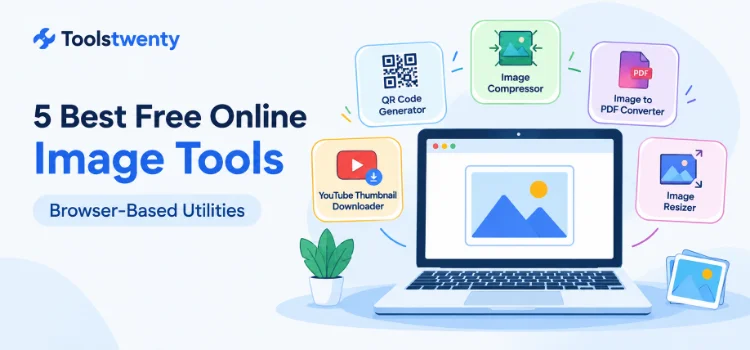
5 Best Free Online Image Tools – Browser-Based Utilities
Working with images is part of everyday life for website owners, bloggers, students, social media managers, and content creators. You might need to reduce an image’s file size, change its dimensions, combine several pictures into a PDF, create a QR code, or find a thumbnail from a YouTube video. These tasks are common, but switching between different applications can take extra time.
The good news is that you do not always need expensive editing software or complicated applications. These 5 best free online image tools from Toolstwenty help with common image-related tasks directly through your web browser, making them convenient for everyday projects.
In this guide, you will discover what each tool does, when to use it, and how to get started. Whether you are preparing images for a website, organizing documents, creating content, or sharing information, you can choose the tool that best matches your needs.
Explore the 5 Image Tools
Choose one of the free online image tools below to jump directly to its features and instructions.
1. QR Code Generator – Create Custom QR Codes Easily
Sharing a long website address, Wi-Fi details, contact information, or a social media profile can be inconvenient when people have to type everything manually. A QR code offers a quicker way to share supported information: someone can scan it with a compatible smartphone to access the encoded content or open the relevant action.
Toolstwenty’s QR Code Generator helps you create QR codes for everyday, personal, and professional use. Select the type of information you want to share, enter the relevant details, customize the design, preview the result, and download the finished code in a supported format.
What can you create with this QR code tool?
Customize the QR code to match your brand
A QR code does not always need to look plain and generic. Depending on the available design options, you can customize colours, use gradients, adjust dot and corner styles, add a logo, choose a frame, and review the live preview before exporting your code.
The tool provides PNG, JPEG, and SVG export options. PNG and JPEG are useful for many everyday digital uses, while SVG can be useful when you need a scalable graphic for compatible design and print workflows.
How to use the QR Code Generator
- Open the QR Code Generator.
- Select the type of QR code you want to create.
- Enter the relevant website URL, text, contact details, Wi-Fi information, or other supported content.
- Customize the design and check the preview.
- Download the code in a supported format and use it where needed.
Who is it useful for? Small businesses, shop owners, teachers, event organizers, marketers, freelancers, and anyone who wants to share information through a scannable code.
Create Your QR Code
Generate and customize a QR code for your next project.
Open Free QR Code Generator →2. Image Compressor – Reduce Image File Size Online
Large image files can be difficult to upload, email, share, or store. They can also increase the amount of data a browser needs to load when those images appear on a website. If you regularly work with photos, screenshots, or graphics, reducing their file size can make everyday file management easier.
Toolstwenty’s Image Compressor helps you compress JPEG, PNG, and WebP images online. It supports processing multiple images in one session and provides compression-quality and output-format options so you can choose settings that suit your needs.
How can image compression help?
Which image formats are supported?
- JPEG/JPG: Commonly used for photographs and everyday pictures.
- PNG: Often used for graphics, screenshots, and images that need transparency.
- WebP: A modern image format commonly used on websites.
How to compress images online
- Open the Image Compressor.
- Select or drag and drop one or more supported images.
- Adjust the compression quality percentage to suit your needs.
- Choose a supported output format or keep the original format, if available.
- Start compression and review the results.
- Download the individual files or use the available options to download multiple results together as a ZIP file.
Who is it useful for? Website owners, bloggers, students, online sellers, designers, and anyone who needs smaller image files for uploading, sharing, or storage.
Compress Your Images
Reduce image file sizes and download your compressed results.
Open Free Image Compressor →3. Image to PDF Converter – Combine Pictures into One PDF
Have you ever needed to send several scanned pages, receipts, screenshots, or photographs as one document? Attaching every image separately can make a collection harder to organize and review. Converting supported images into a single PDF can make them easier to share, store, and open as one document.
Toolstwenty’s Image to PDF Converter lets you select multiple JPG, JPEG, and PNG images and combine them into one PDF document. You can review the selected images and adjust available page, orientation, and compression settings before creating the PDF.
What can this image-to-PDF tool help you do?
Add a watermark when needed
The converter also provides an optional text watermark with an opacity setting. This can be useful when preparing a document that needs a visible label, such as a draft or reference copy. Remember that a watermark is not a substitute for proper access controls or document security.
How to convert images into a PDF
- Open the Image to PDF Converter.
- Select multiple JPG, JPEG, or PNG images from your device.
- Review the image previews and check the order.
- Choose the page size and orientation.
- Select a compression setting and add optional watermark text if required.
- Review your settings and use the conversion option to create the PDF.
Who is it useful for? Students, teachers, office workers, job applicants, freelancers, and anyone who needs to organize supported images into a single PDF document.
Convert Images into a PDF
Combine your supported pictures into one convenient document.
Open Free Image to PDF Converter →4. YouTube Thumbnail Downloader – Find and Save Available Thumbnails
YouTube thumbnails give viewers a quick idea of what a video is about before they watch it. Creators, bloggers, and designers may want to inspect thumbnail designs, compare image quality, or save a thumbnail for permitted reference and workflow purposes. Finding the correct image manually can take extra time.
Toolstwenty’s YouTube Thumbnail Downloader lets you enter a supported public YouTube video link or video ID to preview the thumbnail versions available for that video. You can then download an available image or copy its direct image URL.
Useful features for creators and researchers
How to download a YouTube thumbnail
- Open the YouTube video whose thumbnail you need.
- Copy its public video URL or use the video ID.
- Open the YouTube Thumbnail Downloader and paste the URL or ID.
- Select the option to get the available thumbnails.
- Review the available thumbnail sizes and choose the version you need.
- Download the image or copy its direct image URL.
The tool supports common YouTube link formats, including standard watch links, youtu.be links, Shorts, embedded videos, and supported live URLs. It checks which thumbnail versions are available rather than assuming every resolution exists for every video.
Important copyright note: Being able to download a thumbnail does not automatically give you permission to republish it or use it commercially. Respect the creator’s rights and obtain permission when required.
Who is it useful for? YouTube creators, bloggers, designers, marketers, students, and people researching video presentation and thumbnail design.
Get a YouTube Thumbnail
Preview available thumbnail sizes from a supported public video.
Open YouTube Thumbnail Downloader →5. Image Resizer – Change Image Dimensions Online
An image may look perfectly fine but still be the wrong size for a website, social media profile, video thumbnail, banner, or online form. Some platforms require specific pixel dimensions, while others work better with square, portrait, or landscape images. Changing dimensions without care can also stretch or distort the original image.
Toolstwenty’s Image Resizer helps you resize JPG, JPEG, PNG, and WebP images online. You can enter custom pixel dimensions, resize by percentage, or choose an available preset for common image sizes and platforms.
Choose the resizing method that fits your task
Which image formats can you resize?
The tool supports JPG, JPEG, PNG, and WebP images. You can choose a supported output format. Quality controls are available for JPEG and WebP exports, with settings depending on the selected format.
How to resize an image online
- Open the Image Resizer.
- Select single-image or bulk resizing, depending on your needs.
- Upload the supported image or images.
- Choose custom pixel dimensions, percentage scaling, or a suitable preset.
- Keep the aspect ratio locked when you want to preserve the original proportions.
- Choose the output format and available quality settings.
- Resize the image and download the result.
The resizer processes images directly in your browser rather than requiring you to upload the original image to an external image-processing service. This can be helpful when working with personal images, although you should still consider the security of the device and browser you use.
Who is it useful for? Social media managers, website owners, bloggers, video creators, designers, online sellers, and anyone who needs images with specific dimensions.
Resize Your Image
Choose custom dimensions, percentage scaling, or a useful preset.
Open Free Image Resizer →How to Choose the Right Image Tool
The best online image tool depends on the task you want to complete. You do not need to use all five tools for every project; simply choose the one that matches your goal.
- Need to share a link or contact details? Use the QR Code Generator.
- Need to reduce image file sizes? Use the Image Compressor.
- Need to combine several pictures into one document? Use the Image to PDF Converter.
- Need a thumbnail from a public YouTube video? Use the YouTube Thumbnail Downloader.
- Need specific image dimensions? Use the Image Resizer.
Each of these browser-based image utilities serves a different purpose, from sharing information to preparing images for publishing. Choosing the right tool can simplify your workflow and reduce the need to install a separate application for every small task.
Final Thoughts
These 5 best free online image tools cover five common needs: creating QR codes, compressing image files, converting pictures into PDFs, finding available YouTube thumbnails, and resizing images to the dimensions you need.
For the best results, review your output before using it. Make sure QR codes scan correctly, compressed images remain clear enough, PDFs have the right layout, downloaded thumbnails are used with appropriate permission, and resized images meet your required dimensions.
Explore the Toolstwenty tools linked in this guide and bookmark the ones you use most often. Having the right browser-based utility ready can make everyday image tasks simpler and more convenient.
Frequently Asked Questions
1. What are the 5 best free online image tools in this guide?
This guide covers the Toolstwenty QR Code Generator, Image Compressor, Image to PDF Converter, YouTube Thumbnail Downloader, and Image Resizer. Each tool is designed for a different image-related task, so you can choose the one that fits your needs.
2. Can I use these image tools without installing software?
These tools are designed to be accessed through a web browser, so you do not need to install a separate desktop application just to perform the tasks described in this article. An internet connection may be needed to open the website and load the tool.
3. Which tool should I use to reduce an image’s file size?
Use the Toolstwenty Image Compressor to reduce the file size of supported JPEG, PNG, and WebP images. It provides quality adjustments and can process multiple images in one session.
4. How can I combine multiple images into one PDF?
Open the Image to PDF Converter, select your supported JPG, JPEG, or PNG images, choose the page size and orientation, review the available compression options, and create your PDF.
5. Can I download any YouTube thumbnail with the downloader?
The downloader checks which thumbnail versions are available for a supported public YouTube video. Available sizes can differ from one video to another, so not every resolution is guaranteed to exist for every video.
6. Do I need a YouTube API key to get a thumbnail?
No. Toolstwenty’s YouTube Thumbnail Downloader lets you enter a supported public video URL or video ID without requiring a YouTube API key or account registration.
7. What is the difference between image compression and image resizing?
Image compression mainly reduces file size, while image resizing changes pixel dimensions, such as width and height. These are different operations: an image can have smaller dimensions but still have a relatively large file size, or it can keep the same dimensions while its file size decreases through compression.
8. Which image formats are supported by these tools?
The Image Compressor and Image Resizer support JPEG/JPG, PNG, and WebP. The Image to PDF Converter supports JPG, JPEG, and PNG. The QR Code Generator provides PNG, JPEG, and SVG export options.
9. Are these tools suitable for beginners?
They are designed for common tasks with straightforward browser-based workflows. Choose the tool that matches your goal, follow its on-screen options, and review the output before downloading or sharing it.
10. Can I reuse a YouTube thumbnail after downloading it?
Downloading a thumbnail does not automatically grant permission to republish it or use it commercially. Check the applicable copyright and usage rights, and obtain permission when required.
Helpful Hardware for Image & Design Work
Our free online image tools are useful for everyday tasks. If you also work with digital artwork or physical photos, these optional hardware products may be worth exploring.
HUION Inspiroy H430P Drawing Tablet
Create digital illustrations, graphics and handwritten notes with a compact drawing tablet. It may be useful for readers who use image editing or graphic design software alongside browser-based image utilities.
Canon PIXMA E470 All-in-One Printer & Scanner
A printer with a scanner can help you digitize physical photos and documents. Once you have suitable image files, you can use an online Image to PDF Converter to combine supported images into a PDF document.
As an Amazon Associate I earn from qualifying purchases. Product features, prices and availability may change. Please check the current Amazon listing before purchasing.