
How to Convert Text Case Online

Getting your words right is important, but presenting them with the correct capitalization is just as essential. A small formatting mistake—like random uppercase letters, inconsistent headings, or sentences that don’t start with a capital letter—can make even well-written content look unprofessional.
Instead of spending time fixing every line manually, you can use a Case Converter to transform your text into the format you need within seconds. Whether you’re writing a blog, preparing an assignment, managing social media content, or creating business documents, this simple tool helps you save time while keeping your writing clean, consistent, and easy to read.
A text case converter makes it easy to change text case online without manually retyping your content. You can quickly convert text to uppercase, lowercase, sentence case, title case, and other formats with just a few clicks. This is useful when you need to change the formatting of headings, sentences, social media posts, documents, or other text.
In this complete guide, you will learn:
What is a Case Converter?
How does it actually work?
All the powerful features of our tool
How to Convert Text Case Online
Step-by-step guide on how to use it
Why you should use a Case Converter (with real benefits)
Practical examples and pro tips
Answers to the most common questions (FAQs)
Let’s dive in!
What is a Case Converter?
A Case Converter (also called Text Case Converter or Letter Case Changer) is an online tool that changes the capitalization style of any text instantly. It removes the need for manual editing and ensures consistency across your content.
Different writing situations require different capitalization styles:
Sentence Case → Standard for paragraphs and body content
Title Case → Perfect for blog titles, video titles, and headings
UPPER CASE → Used for emphasis, warnings, or short headings
lower case → Common in casual writing, usernames, or code
Capitalized Case → Gives a clean, formal look to subheadings
Alternating Case → Used for creative or fun content
Inverse Case → Helpful for fixing accidental Caps Lock text
Before online tools existed, people had to change case manually in Word or Google Docs. It was slow, tiring, and full of errors — especially with long documents. Modern case converters use smart algorithms to do this work in milliseconds while preserving important words like proper nouns and abbreviations.
Our tool goes much further than basic converters. It includes intelligent features like Smart Auto-Correction, Custom Terms Support, and Auto Save — making it a complete productivity tool rather than just a simple converter.
How Does a Case Converter Work?
Most people don’t think about the technology behind these tools, but understanding it helps you use them better.
Our Case Converter runs entirely in your web browser using JavaScript. This means:
Your text never leaves your device
Processing is extremely fast
It works even with slow internet (after first load)
Complete privacy is maintained
Here’s what happens step by step when you use the tool:
You paste or type text → The tool detects changes instantly using JavaScript event listeners.
You select a conversion mode → Each mode has its own logic:
UPPER CASE & lower case use simple built-in functions.
Sentence Case uses regular expressions (regex) to find sentence endings (., ?, !) and capitalizes the next letter.
Title Case follows proper linguistic rules (small words like “a”, “the”, “in”, “on” stay lowercase unless they are first or last).
Alternating Case and Inverse Case work character by character.
Smart Auto-Correction kicks in → The tool checks words against a smart list of proper nouns, brands (iPhone, NASA, HTML), and abbreviations. These remain unchanged.
Custom Terms are applied → Any words you added in Custom Terms stay exactly as you want them.
Output + Statistics update in real-time → You see results instantly along with character, word, and line counts.
Because everything happens locally in your browser, the tool is lightning fast and secure.
Features of Our Case Converter
We didn’t just build another basic converter. We added features that real users actually need every day.
Multiple Text Conversion Options
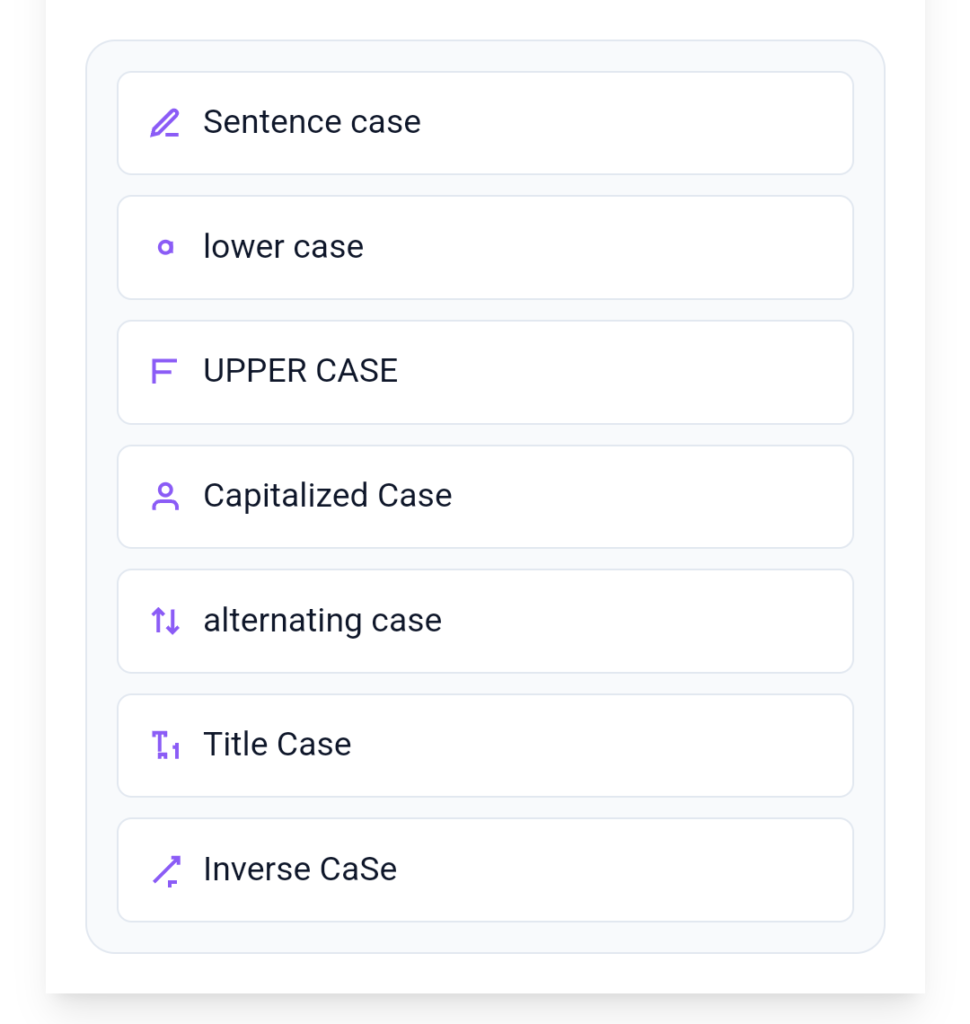
Our tool supports 7 powerful conversion styles:
Sentence Case — Capitalizes the first letter of every sentence. Perfect for articles and emails.
lower case — Converts everything to lowercase. Great for usernames, links, or casual tone.
UPPER CASE — Makes all text uppercase. Ideal for headings, alerts, or emphasis.
Capitalized Case — Capitalizes the first letter of every word. Clean look for subheadings.
Title Case — Applies standard title capitalization rules (small words stay lowercase). Best for blog titles and video titles.
alternating case — Alternates uppercase and lowercase letters. Fun for creative posts.
Inverse CaSe — Flips the existing case of every character. Perfect for fixing Caps Lock mistakes.
Real-Time Text Statistics
Stay in control of your content length:
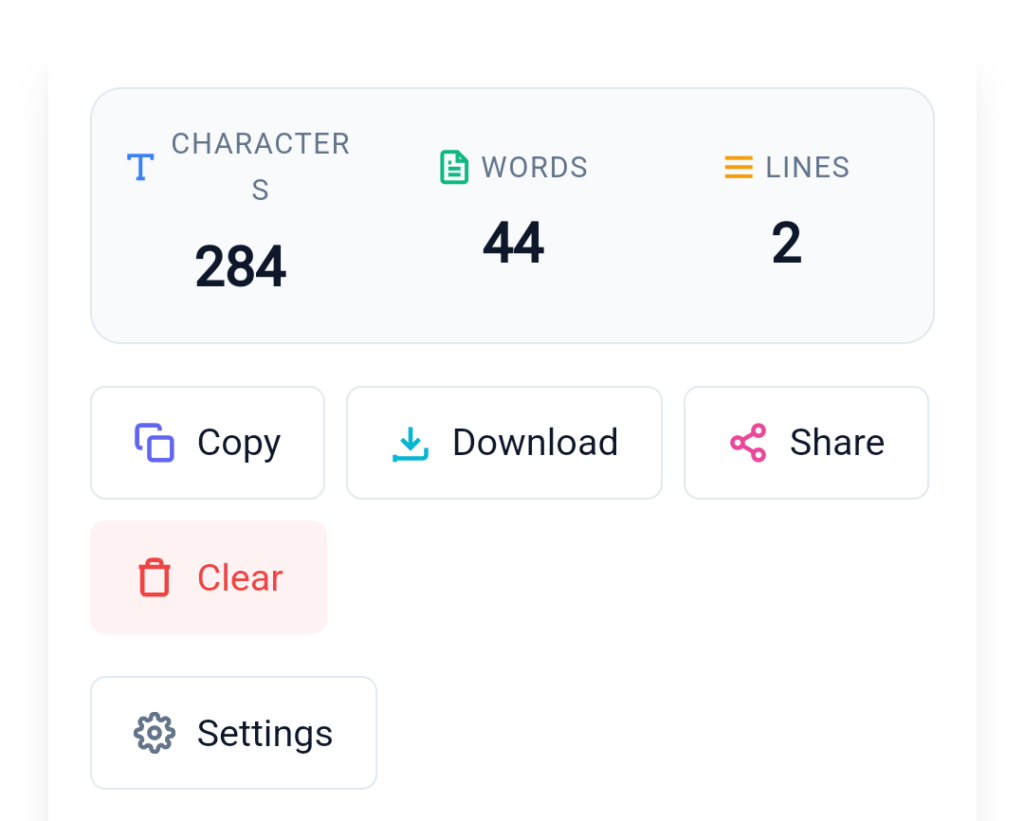
Character Count
Word Count
Line Count
These numbers update live — super useful for social media posts, SEO articles, or academic work.
One-Click Copy
Click once and the converted text goes straight to your clipboard. No need to select text manually.
Download Text File
Download your converted content as a clean .txt file for offline use or further editing.
Easy Sharing
Share directly from the tool using your device’s native sharing options (WhatsApp, Email, Telegram, etc.).
Smart Auto-Correction
This is our standout feature. The tool automatically protects:
Proper nouns (Rohan, Mumbai, Taj Mahal)
Brand names (iPhone, MacBook, Coca-Cola)
Abbreviations (HTML, CSS, NASA, CEO, COVID-19)
You no longer have to fix these manually after conversion.
Custom Terms Support
Every niche has special words. Add your own terms (product names, technical jargon, client names) and the tool will never change them — no matter which case mode you choose.
Auto Save Feature
Your text is automatically saved in your browser. If you accidentally refresh or close the tab, your work is still there when you return. No more lost content!
How to Use the Case Converter Tool
Using our tool is extremely simple. Follow these 4 steps:
Step 1: Enter or Paste Your Text
Type directly in the box or paste content from any source (Google Docs, Word, notes, websites, etc.).
Step 2: Choose a Case Format
Click on any conversion button — Sentence Case, UPPER CASE, Title Case, etc. You can switch between styles instantly.
Step 3: Get Instant Results
The converted text appears immediately in the output area. Statistics update in real-time.
Step 4: Copy, Download, or Share
Use the one-click buttons to copy, download as TXT, or share via your device.
That’s it! The entire process takes less than 30 seconds for most texts.
Pro Tip: For long documents, paste everything at once instead of line by line for better consistency.
Why Use a Case Converter?
Manual case changing is slow and inconsistent. A good Case Converter saves hours every week and improves quality.
Here’s who benefits the most:
Bloggers & Content Creators
You write multiple titles and headings daily. Title Case for headings and Sentence Case for body content keeps your blog looking professional and consistent.
Students & Educators
Assignments, theses, and study materials need proper formatting. The tool helps follow style guides (APA, MLA, etc.) without stress.
SEO Professionals
Title tags, meta descriptions, and H1/H2 headings perform better with correct capitalization. It also improves click-through rates.
Social Media Managers
Different platforms need different tones. UPPER CASE for urgency, alternating case for fun posts, Sentence Case for professional updates — all in one place.
Developers & Programmers
Quickly convert strings, comments, or documentation without writing custom scripts.
Business & Office Professionals
Emails, reports, proposals, and presentations look more polished and authoritative with proper formatting.
Other users who love it:
YouTube creators formatting descriptions and titles
Email marketers preparing campaigns
Legal and medical professionals maintaining document standards
Writers working on books or scripts
In short — if you work with text regularly, this tool will become one of your daily essentials.
Real-Life Examples
A blogger pastes a 3000-word draft written in all lowercase and converts it to perfect Sentence Case in seconds.
A YouTube creator uses Title Case for video titles and Capitalized Case for timestamps.
A student standardizes messy notes from multiple sources into clean Sentence Case before submission.
A social media manager turns “limited time offer” into “LIMITED TIME OFFER” for more impact.
Pro Tips for Best Results
Always review the final output — smart tools are excellent but human eyes still catch context-specific needs.
Add your frequently used proper nouns and brand names to Custom Terms once and save time forever.
Use Auto Save by keeping the tab open during long writing sessions.
Combine with grammar checkers for a complete content workflow.
For very long documents, process in sections for easier review.
Conclusion
A powerful Case Converter is no longer a luxury — it is a necessity for anyone serious about content quality and productivity. Our tool combines speed, intelligence, and thoughtful features like Smart Auto-Correction, Custom Terms, and Auto Save that most free tools lack.
Whether you are formatting one sentence or an entire eBook, you will get consistent, professional results every single time. No sign-up, no ads, no data tracking — just pure productivity.
Bookmark our Case Converter Tool today and make text formatting effortless forever.
Ready to transform your text?
👉 Try our free Case Converter now and see the difference!
Frequently Asked Questions (FAQs)
1. Is the Case Converter tool completely free?
Yes! Our Case Converter is 100% free to use. No hidden charges, no sign-up required, and no limits on usage.
2. Does it work on mobile phones and tablets?
Absolutely. The tool is fully responsive and works perfectly on Android, iPhone, iPad, and all modern browsers.
3. Is my text private and secure?
Yes. All conversion happens locally in your browser. Your text is never sent to any server. We do not store or track your content.
4. Can I use it without internet after loading?
Yes. Once the page loads, most features (including Auto Save) work offline because processing happens in your browser.
5. What is the difference between Title Case and Capitalized Case?
Capitalized Case capitalizes the first letter of every word. Title Case follows proper rules — small words like “a”, “the”, “in”, “on”, “and” stay lowercase unless they are the first or last word.
6. How does Smart Auto-Correction work?
It automatically protects proper nouns, brand names, abbreviations, and technical terms. You can also add your own custom words using the Custom Terms feature.
7. Can I convert very long texts or entire documents?
Yes. The tool handles large texts efficiently. For extremely long documents, we recommend processing in sections for easier review and best performance.
8. How do I change text case online?
You can change text case online by entering your text into a case converter and selecting the format you need, such as uppercase, lowercase, sentence case, or title case. The converted text can then be copied and used in your document, website, or other content.
9. What is a text case converter?
A text case converter is an online tool that changes the capitalization and formatting of text. Depending on the tool, it can convert text into uppercase, lowercase, sentence case, title case, and other formats.
Latest Posts
- Bluehost Hosting Review 2026: Pricing, Plans & WordPress Hosting
- 12 Free SEO Tools for Websites & YouTube to Improve Your Content
- Systeme.io Review 2026: Pricing, Free Plan, Features & Sales Funnels
- What Is an Image Resizer? Image Dimensions, Pixels, Size & Resolution Explained
- Backwards Text: How to Write, Reverse & Copy Text Backwards
- Online Diff: The Ultimate Guide to Comparing Two Texts
- How to Remove Line Breaks in Excel, Word & Notepad
- How to Remove Duplicate Lines from Any Text (Guide)
- YouTube Title Ideas That Make Your Videos Easier to Discover
- How to Extract Tags From YouTube Videos: A Complete Guide